






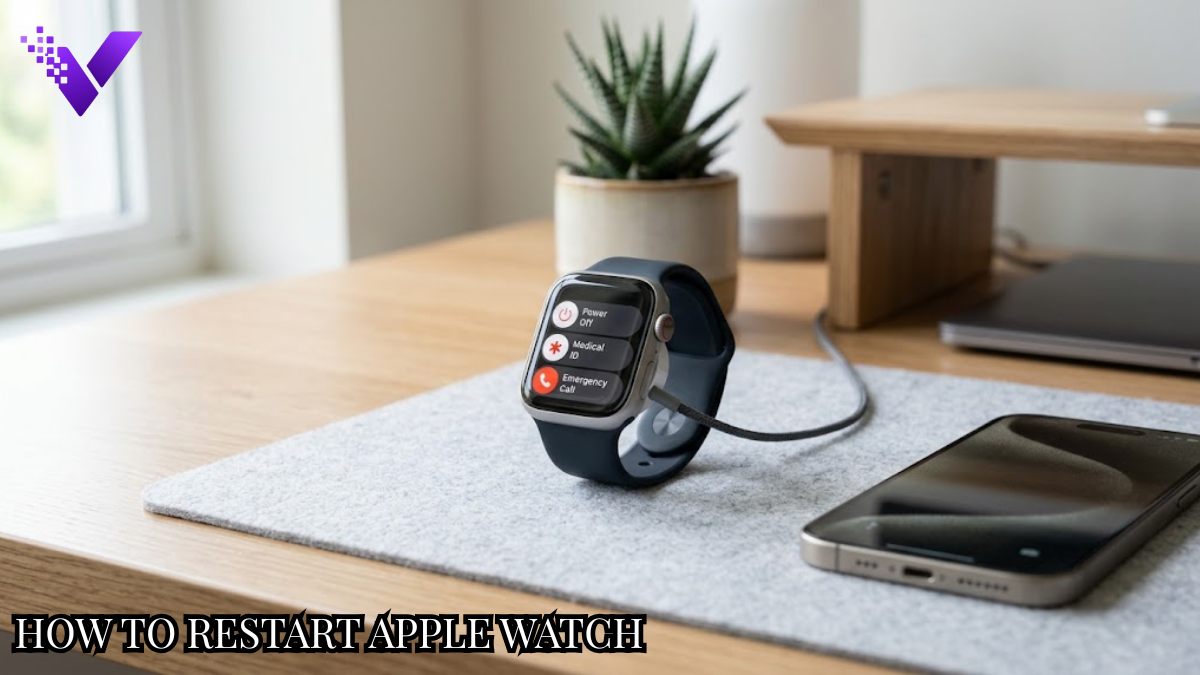
How to Restart Apple Watch: Complete Guide to Safe Restarting and Troubleshooting
An Apple Watch can occasionally freeze, stop responding to taps, lose a connection, or behave unexpectedly after an app or system process fails. A restart is often the simplest first fix.
Learning how to restart Apple Watch correctly matters because a normal restart and a force restart are not the same procedure. Apple recommends using a standard restart first and reserving a forced restart for situations where the watch will not respond normally.
The process takes only a few button presses. The important part is knowing which method fits the problem and when restarting should be avoided.
What Does “How to Restart Apple Watch” Mean?
Restarting an Apple Watch means turning watchOS completely off and starting it again without erasing personal information, apps, settings, health records, or the pairing with your iPhone.
A normal restart uses the side button and onscreen power controls. A force restart uses the Digital Crown and side button together when the operating system is no longer responding.
Basic restart flow:
Remove from charger → Hold Side Button → Tap Power → Slide Power Off → Wait → Hold Side Button → Apple Logo → Watch Face
For an unresponsive device:
Frozen Watch → Hold Digital Crown + Side Button → Keep Holding for 10+ Seconds → Apple Logo → Release
Apple states that an Apple Watch cannot be restarted normally while it is charging, so disconnect it from the charger before beginning the regular procedure.
Why Is Knowing How to Restart Apple Watch Important?
A restart is useful because it gives watchOS a fresh operating session without performing a factory reset.
Key benefits include:
- Clearing temporary software hangs that prevent apps or menus from responding.
- Reloading watchOS services after unusual system behavior.
- Re-establishing normal communication between software components.
- Providing a low-risk troubleshooting option before unpairing the device.
- Helping diagnose deeper problems when the same fault immediately returns.
- Preserving user data, unlike an erase-and-reset procedure.
A persistent problem after several restarts usually points toward something other than a simple temporary software state.
Quick Reference Matrix
| Core Element | Action / What It Involves | Primary Goal / Output |
| Normal shutdown | Use side button and Power Off control | Clean watchOS shutdown |
| Startup | Hold the side button | Load the operating system |
| Force restart | Hold Crown + side button | Recover frozen watch |
| Charger status | Disconnect before normal shutdown | Enable power controls |
| Apple logo | Wait for startup sequence | Confirm reboot began |
| Paired iPhone | Restart separately when relevant | Refresh device connection |
| Software update | Let installation finish uninterrupted | Avoid update corruption |
| Persistent failure | Move to deeper troubleshooting | Identify underlying fault |
How to Restart Apple Watch Step by Step
The correct procedure depends on whether the touchscreen and buttons are still functioning normally.
Step 1: Remove the Apple Watch From Its Charger
Disconnect the watch before attempting a regular shutdown.
Apple specifically notes that you cannot perform the normal restart process while Apple Watch is charging.
- Lift the watch from its magnetic charger.
- Check that the display responds.
- Locate the side button below the Digital Crown.
Do not erase, unpair, or reset anything at this stage.
Step 2: Open the Power Controls
Press and hold the side button until the power-related controls appear.
On current watchOS versions, look for the Power button near the top-right area of the screen. Tap it to display the shutdown option.
| Control | What to Do |
| Side button | Press and hold |
| Power icon | Tap once |
| Power Off | Drag slider right |
Avoid holding the Digital Crown during this normal procedure.
Step 3: Shut the Watch Down
Drag the Power Off slider toward the right.
The screen should eventually go black. Give the watch a moment to finish its shutdown rather than immediately pressing buttons again.
A proper shutdown closes the active watchOS session before power is removed.
Step 4: Turn the Apple Watch Back On
Press and hold the side button.
Release it after the Apple logo appears. Apple confirms that holding the side button until this logo displays is the standard startup procedure.
Startup sequence:
- Screen remains dark briefly.
- Apple logo appears.
- watchOS loads.
- Watch face becomes available.
Some devices can take longer than others depending on software state and installed services.
Step 5: Test the Original Problem
Do not immediately assume the restart worked just because the watch face appeared.
Test the specific feature that failed before.
For example:
- Open the affected app.
- Test touch response.
- Check notifications.
- Verify Bluetooth behavior.
- Try the Digital Crown.
- Confirm the paired iPhone connection.
A fault that immediately returns needs targeted troubleshooting rather than repeated power cycles.
Step 6: Force Restart Only When the Watch Is Frozen
Use a forced restart when the display or operating system has become unresponsive enough that normal shutdown is unavailable.
Press and hold:
Digital Crown + Side Button
Keep both pressed simultaneously for at least 10 seconds, or until the Apple logo appears. Then release them. Apple recommends this method only when a normal restart cannot be completed.
| Situation | Recommended Action |
| Screen works normally | Standard restart |
| Power menu opens | Standard restart |
| Interface completely frozen | Force restart |
| Buttons respond but app is stuck | Try normal restart first |
| Apple logo remains stuck | Follow recovery troubleshooting |
Step 7: Restart the Paired iPhone When the Fault Involves Both Devices
Certain Apple Watch problems actually involve communication between the watch and its paired iPhone.
Apple’s troubleshooting guidance suggests restarting both devices when something is not working correctly.
Restart the iPhone separately, then allow Bluetooth, Wi-Fi, iCloud services, and Watch connectivity to reconnect.
This is particularly relevant when the watch itself operates normally but synchronization does not.
Apple Watch Restart Scenarios
Knowing how to restart Apple Watch becomes more useful when the method is matched to the actual symptom.
When an App Stops Responding
A single frozen application does not automatically indicate hardware failure.
Try leaving the application first. If watchOS itself begins lagging or stops accepting normal input, perform a regular shutdown and startup.
Repeated failure from one application can indicate an app-specific bug rather than a watch-wide issue.
When the Apple Watch Is Stuck on the Apple Logo
A watch that stays on the Apple logo needs different handling from an ordinary slow startup.
Apple recommends holding the side button and Digital Crown until the screen turns black and the Apple logo reappears. If the logo problem continues, Apple’s next troubleshooting path includes unpairing and pairing the watch again.
Do not jump directly to erasing the device without working through the less destructive recovery options first.
When the Apple Watch Will Not Turn On
A blank display can result from a depleted battery rather than a software crash.
Apple advises checking charger alignment, cleaning the charging surfaces, trying another compatible charging cable or power adapter, and allowing a deeply discharged watch time to charge. Apple notes that it can take up to 30 minutes before the charging indicator appears when the battery is completely drained.
A force restart becomes relevant only after basic charging checks have been addressed.
After a Failed Connection With an iPhone
Restarting both devices can help distinguish a temporary connection failure from pairing trouble.
Keep the watch and iPhone close after startup and give the connection a chance to restore before changing network or pairing settings.
Persistent pairing problems may require separate Bluetooth, software-update, or unpairing diagnostics.
Before Troubleshooting an Update Error
Apple includes a restart among its troubleshooting actions when an Apple Watch cannot verify or begin an update.
The timing matters.
Restart before retrying the update, not while watchOS is actively being installed.
Normal Restart vs. Force Restart
These two procedures have different purposes.
| Factor | Normal Restart | Force Restart |
| Interface condition | Responsive | Frozen or unusable |
| Main controls | Side button + screen | Side button + Digital Crown |
| Onscreen slider | Required | Not required |
| Button hold | Until power menu/startup | At least 10 seconds |
| Preferred method | Yes | Only when needed |
| Typical trigger | Routine troubleshooting | System lockup |
| Touchscreen needed | Yes | No |
| Intended behavior | Controlled shutdown | Forced system reboot |
The normal procedure should remain the default.
A force restart is a recovery mechanism, not a faster substitute for shutting the watch down correctly.
Common Mistakes & Best Practices
Common Mistakes to Avoid
- Trying to shut down while charging
Normal power-off controls are unavailable while the device remains on its charger. - Confusing restart with factory reset
Erasing content is a completely different operation and is unnecessary for ordinary glitches. - Using a force restart for every problem
Apple specifically positions forced restarting as a fallback when normal restarting is unavailable. - Releasing the buttons too soon
During forced recovery, continue holding both controls until the Apple logo appears. - Interrupting an active watchOS installation
Restarting in the middle of an update can interfere with the installation process. - Assuming a black screen always means watchOS crashed
A completely discharged battery can produce the same visible symptom. - Repeatedly rebooting a watch with recurring faults
Frequent recurrence deserves diagnosis instead of another identical reboot.
How to Maximize Efficiency / Best Practices
- Identify the symptom first. Separate battery, connection, app, touch, and system-freeze problems.
- Check physical buttons. A stuck Crown or side button can make software troubleshooting misleading.
- Record recurring behavior. Note which application or action triggers the fault.
- Keep watchOS current. Apple says software updates provide bug fixes and security enhancements.
- Test one change at a time. This makes the actual cause easier to isolate.
- Watch for abnormal heat. Let the device cool before continued troubleshooting if it becomes unusually hot.
- Escalate persistent hardware symptoms. Charging, display, button, or battery failures may require service rather than software intervention.
Future & Modern Trends in Apple Watch Restarting
Modern Apple Watch troubleshooting is becoming more software-driven and less dependent on full device resets.
Current watchOS support flows increasingly separate basic recovery into layers: restart the affected device, inspect connectivity, verify available software updates, troubleshoot storage or charging, then move toward pairing or service only when simpler measures fail.
Apple also continues to integrate the watch more closely with its paired iPhone. That means future troubleshooting will increasingly involve the watchOS–iOS relationship, rather than treating the wearable as an isolated device.
Another shift is improved diagnostic separation. A frozen operating system, exhausted battery, stalled update, pairing failure, and defective charging setup can produce similar symptoms, but each now has a different support path.
That distinction matters more than memorizing button combinations.
Practical Apple Watch Restart Checklist
Before closing the troubleshooting session, confirm these points:
- The magnetic charger is disconnected for a standard shutdown.
- The side button physically moves and responds.
- The Digital Crown is not jammed or obstructed.
- The screen shows no obvious physical damage.
- The watch has enough battery power to boot.
- No watchOS installation is currently running.
- The Apple logo appears during startup.
- The watch eventually reaches its usable interface.
- The original faulty feature has been tested separately.
- The paired iPhone shows normal connectivity afterward.
- Recurring failures have been documented rather than repeatedly rebooted.
- Hardware service has been considered if software recovery changes nothing.
Final Thoughts
Learning how to restart Apple Watch is mostly about choosing between two procedures. Use a standard shutdown whenever the watch still responds. Use the Digital Crown and side-button combination when watchOS is genuinely frozen.
Restarting is a troubleshooting starting point, not a universal repair. If charging problems, boot loops, connection failures, or freezes keep returning, investigate the underlying software or hardware issue rather than relying on repeated reboots.
Frequently Asked Questions – FAQs
Does How to Restart Apple Watch Differ by Model?
The core restart controls are broadly consistent across current Apple Watch families: the side button handles normal shutdown/startup, while a forced restart uses the side button and Digital Crown together.
The exact appearance of power controls can vary with watchOS software versions rather than simply the case size or model.
Will Restarting an Apple Watch Delete My Data?
No. A standard or forced restart does not erase your apps, settings, messages, fitness information, or pairing configuration.
An erase operation is separate and requires specific reset steps.
How Long Should I Hold the Buttons for a Force Restart?
Hold the side button and Digital Crown together for at least 10 seconds, continuing until the Apple logo appears.
Release both controls once the startup sequence begins.
Why Can’t I Turn Off My Apple Watch While It Is Charging?
Apple disables the normal shutdown procedure while the watch is connected to its charger.
Remove it from the charging puck first, then use the side button and onscreen Power Off slider.
Should I Force Restart an Apple Watch During a Software Update?
No. Apple instructs users to leave the watch on its charger during installation and not restart the Apple Watch or paired iPhone while the update is running. The watch restarts automatically when installation finishes.
Interrupting an active update is different from restarting before retrying a failed update.
What Should I Do if My Apple Watch Still Shows the Apple Logo After Restarting?
Apple recommends trying a force restart first. If the device remains stuck on the logo afterward, its support procedure moves to unpairing and pairing the watch again, checking software updates, and seeking service if the issue remains.
A persistent boot loop should not be treated as an ordinary restart problem.
What if My Apple Watch Has a Black Screen After Restarting?
Check charging before assuming the watch has failed.
Apple says a deeply discharged watch may need up to 30 minutes on a properly connected charger before the charging symbol becomes visible. If charging checks fail and the watch remains unresponsive, additional troubleshooting or service may be required.